Running Certifications
Starting A Certification
- Navigate to the relevant profile on Customers page.
- Make sure that you have set up the customer’s identifiers and enabled them for the service.
- Click the big green START NEW CONFORMANCE button to get started.
- Next, select the type of certification as this pre-selects the Capability scope on the next page.
- Finally, you can narrow the list of Identifiers considered for the certification, and give it a name.
ℹ️ Info
Capabilities marked as Mandatory are automatically selected for New Onboard Certification types, and can not be removed. This is specifically designed to ensure ALL customers meet minimum standards before progressing to production.
Once you click START, the Certification begins and you will be able to find it either on the Dashboard page, or in the customer profile.
Adjusting Certification Scope
To adjust the scope of a running Certification, first navigate to its page — either by clicking on its row in the Dashboard, or on the certification in the customer profile.
To remove a Capability from scope, open the menu on the right-hand side and select Remove from scope.
To add a Capability, first make sure that all possible capabilities are showing by choosing Show All Capabilities in the select box in the top-right corner. Out of scope Capabilities will then show as grey bars, which you can bring into scope using the menu on the right-hand side.
To include or exclude a Scenario within a Capability, simply use the In Scope toggle on the right-hand side of the Scenario row itself.
ℹ️ Mandatory and Core
The platform allows Capabilities to be marked as Mandatory, and Scenarios to be marked as Core in order to enforce your policies around minimum requirements for certification.
Approving Manual Steps
Scenarios which end with a Manual Step require a human to review the results and approve them before the certification can be completed.
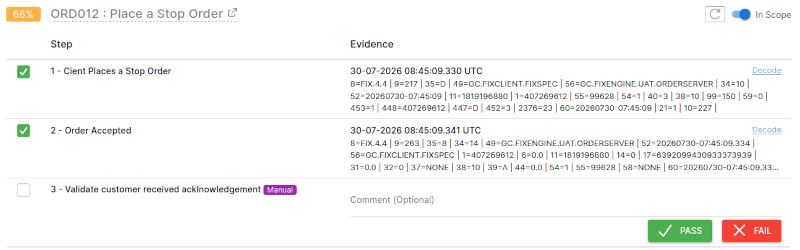
The reviewer may leave a note of their observations (which will appear on the certification report), and either PASS or FAIL the step.
Approving Certifications
Once the platform calculates that the customer has demonstrated sufficient functionality, the APPROVE & COMPLETE button will become active. Clicking this will mark the certification as complete and generate conformance assets.
Frequently Asked Questions
The “Core” percentage shows how many of the Core, in-scope Scenarios have been completed. You can not approve a certification until this hits 100%.
The “All” percentage is a raw number representing the number of Scenarios that have been passed (including optional ones). This number does not need to reach 100% before you can approve.
The platform does not activate this button until the necessary conditions have been passed. This means passing all Mandatory Capabilities, Core Scenarios, and meeting any requirements around the number of Scenarios that must be passed within a Capability.
If a customer can not pass a specific scenario, or tells you that they will not code to a whole capability, then you can remove it from scope (subject to compliance with the mandatory and/or core markings, and any “minimum to pass” requirement). See adjusting certification scope.
This is not currently supported, but it is something in our backlog. You are free, however, to:
- Remove unfinished capabilities from scope,
- Approve the capabilities which are complete, and
- Start a new conformance for the excluded set of capabilities.
There could be a variety of reasons for this. Some common ones are:
- The results related to a date that has now fallen out of either the certification window or maximum data retention period.
- The Scenario has changed and the found evidence no longer passes the new requirement.
- The specification has changed in a way that the data now generates a Hard Error (e.g. introduction of a required field, or a change in the permitted enumerations).
If you do not think any of these apply, please contact FixSpec to investigate further.