Header & Sidebar Navigation
Portal content is designed to be completely flexible and user-controlled. Markdown files are organised in folders under the docs/ folder (see File Organisation), ready to render.
But how should you group those files into a cohesive user experience? That’s what navigation is for.
💡 Need Help?
Organising content and navigation well is a real design exercise, especially if you’re coming from a world of siloed PDF documents where structure was never a first-class concern. Getting it right usually means stepping back, seeing the bigger picture, and being open to new ways of grouping things — it’s something we spend time thinking through with customers as we build their first launch version.
Header Navigation
Along the top of every page is a consistent header bar, containing a series of links to the top-level sections of the portal.

This set of top-level links can be dynamically set in the portal.yaml configuration file in the docs/ folder root.
yamlnavbar:
    items:
        - link: platform/concepts/architecture.md
          label: API Conformance Platform
        - link: portal/index.md
          label: White-Labelled Portal
        - link: finspec/index.md
          label: FinSpec Schema
        - link: apis/index.md
          label: Platform API
Note that access to these top-level navigation items can be controlled based on the authentication status of the user. See Page-Level Authentication Control.
Section Sidebars
Within each section, there is a sidebar navigation item featuring collapsible groups and links to content within that section.
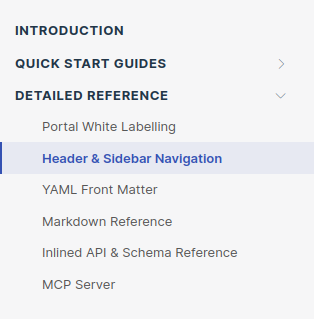
While we recommend keeping the underlying folder structure consistent with the sidebar, it doesn’t have to be that way. The sidebar is configured by a (mandatory) sidebars.yaml file in the section’s folder.
yamlitems:
    - link: index.md
      label: Introduction
    - label: Quick Start Guides
      link: guides/index.md
      items:
          - link: guides/organisation.md
            label: File Organisation
          - link: guides/pushing.md
            label: Pushing Content (Git)
          - link: guides/rendering_schemas.md
            label: Rendering Schemas
ℹ️ Use Of Relative Paths
Each sidebars.yaml file lives within a folder, and link elements are to files within that folder unless they are API references. For links to Markdown pages, avoid traversing outside the current section folder using ../ path notation or fully-qualified paths.
Note that a single page that appears at the root of a sidebars.yaml file is styled the same as a group element for consistency. The only difference is the collapse caret.
Links to API Specs
Fragments of API specifications can be placed inline on a Markdown page using Inlined API & Schema Reference notation.
Alternatively, you can render the whole API specification on a single page in much the same way that SwaggerUI or Redocly do. To create such a link, simply indicate the spec path relative to the /docs/apis folder. The portal will automatically detect the API type (OpenAPI or FinSpec), and render the full specification accordingly.
yaml# This generate a sidebar link labelled "FixSpec API" and points to the OpenAPI file /docs/apis/openapi/fixspec/v5.yaml
- link: openapi/fixspec/v5.yaml
  label: FixSpec API
ℹ️ Auto-Generating Sidebars Within Specs
When rendering a full API specification, the portal uses a different layout which automatically generates the left-hand navigation. This can not be edited manually.
Error Handling
Any sidebars.yaml entry the portal can’t make sense of — a malformed spec path, an
entry with neither page nor group, or a non-mapping list entry — is dropped from
the rendered sidebar rather than causing the page to fail to load, so a bad entry
never takes down the whole sidebar.